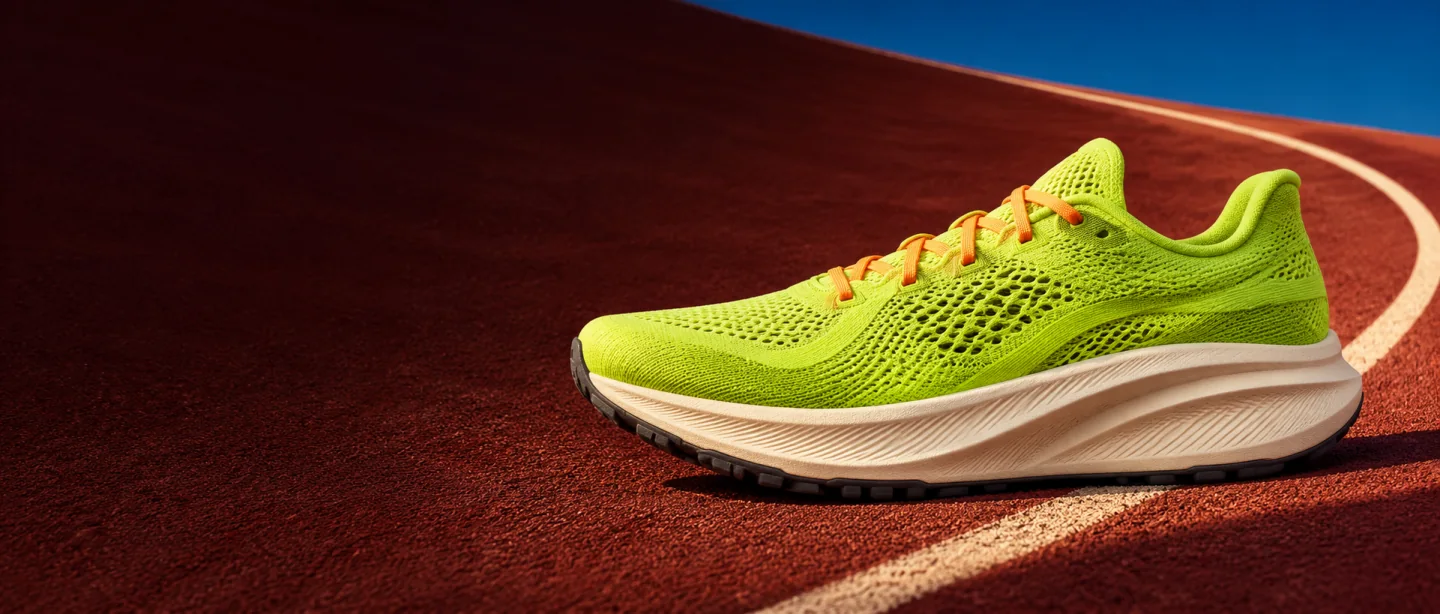
Start with a background, add any references and choose how you want the image to look. See how a trainer and an empty running track become a website banner.
How to create a running shoe banner
Choose a ready-made background, describe a new one or upload your own. Here we start with an empty running track.
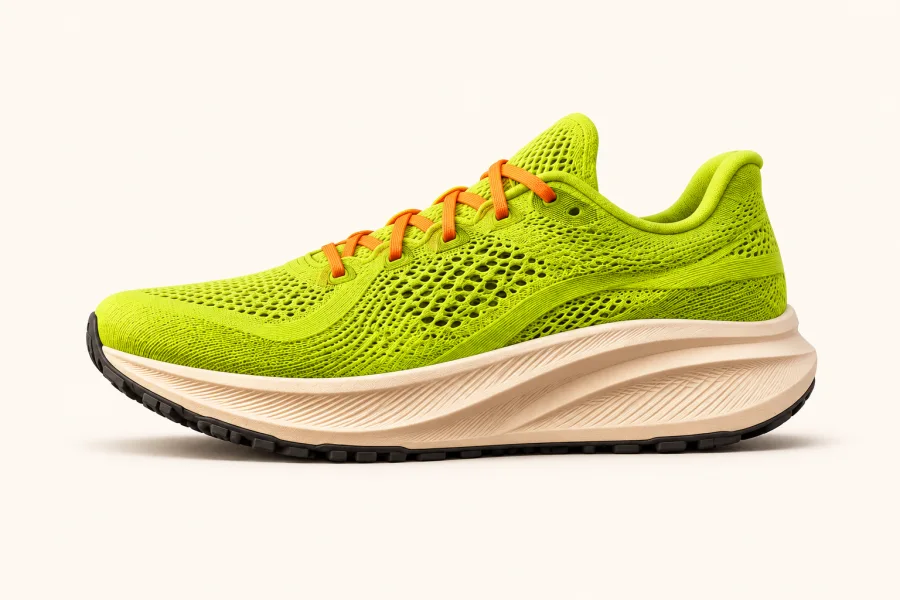
Add one or more clear reference images. For this banner, one side view of the trainer is enough.
Choose your settings
For this banner, choose warm lighting and leave space on the left for a headline. The presets are enough on their own. You can add a written brief if you want more detail.
Subject placement · RightLighting · WarmSpace for text · Left
Run
club.
Download the image as it is, or open the editor to crop it, add text or place your logo.
Follow the four steps
Choose a step to inspect it, or play them in sequence.
Illustrated walkthrough using our running trainer campaign.
01
Choose your starting point.
Choose from 246 ready-made backgrounds in mobile, square and wide formats, with product surfaces and open scenes. You can also upload your own background or describe a new setting. To create an empty scene, skip the references.
02
Bring in your references.
Add up to three reference images. Choose the item, colour or view to use from each one. A single clear view works better than an image showing several alternatives.
03
Make it your own.
Choose the placement, lighting, camera angle and subject size using the presets. A written brief is optional. Choose a square, portrait, wide or social output format, and leave room for wording if you need it.
04
Edit and download your image.
Read the complete prompt and credit charge before confirming. When the image is ready, compare it with your references and download it. Open Add text / customise to crop the image or add wording and a logo. Download the finished design as a PNG or JPG. Save a background separately if you’d like to reuse it.
A few things worth knowing.
Products, objects, scenes and appropriate images of people are supported within our acceptable-use rules. Obtain required permissions for identifiable people and include only personal information needed for your image.
Use reference images you have the right to use. AI may change details, so check the result.
Credits are held during generation and spent when an image is delivered. Definite failed or refused requests release their held credits; uncertain results need review.
Download generated images within 30 days. Saving a project doesn’t extend that window.
Get 3 free welcome credits when you verify your email and confirm your optional newsletter signup. One gift per eligible account and mailbox. Daily limits apply.